How to Make a Digital Vision Board (Free, Step by Step)
How to make a digital vision board for free, step by step: on iPhone, on Mac or online, plus how to do it in Canva, Pinterest or Google Slides.
To make a digital vision board, pick one goal, collect three to five images, place them on a canvas app, add one or two short lines that make you want to go, then put the board somewhere you’ll see it every day and give it a first step on your calendar. You can do all of it for free in Plannedo, Canva, Apple Freeform, Pinterest or Google Slides, on an iPhone, a Mac or in a browser.
Below is a worked example from an empty canvas to a finished board, then the same job in the other tools, and a table to help you pick one. I build Plannedo, a planner where every goal is a board, so the main example is made there. Every step works the same way on paper.
What you need before you start
- One goal. A single board for a single goal works better than one collage of everything you want this year. If you have several, make several boards.
- Three to five images. One of the result, one or two of the work it takes, maybe one of the place or the people. Unsplash has free photos you can use, your own camera roll is even better, and Pinterest is good for ideas.
- A few words. One short line that makes you want to go, and maybe a place or a date. A board is for looking at, not for reading, so two or three lines are plenty.
How to make a digital vision board in Plannedo (free)
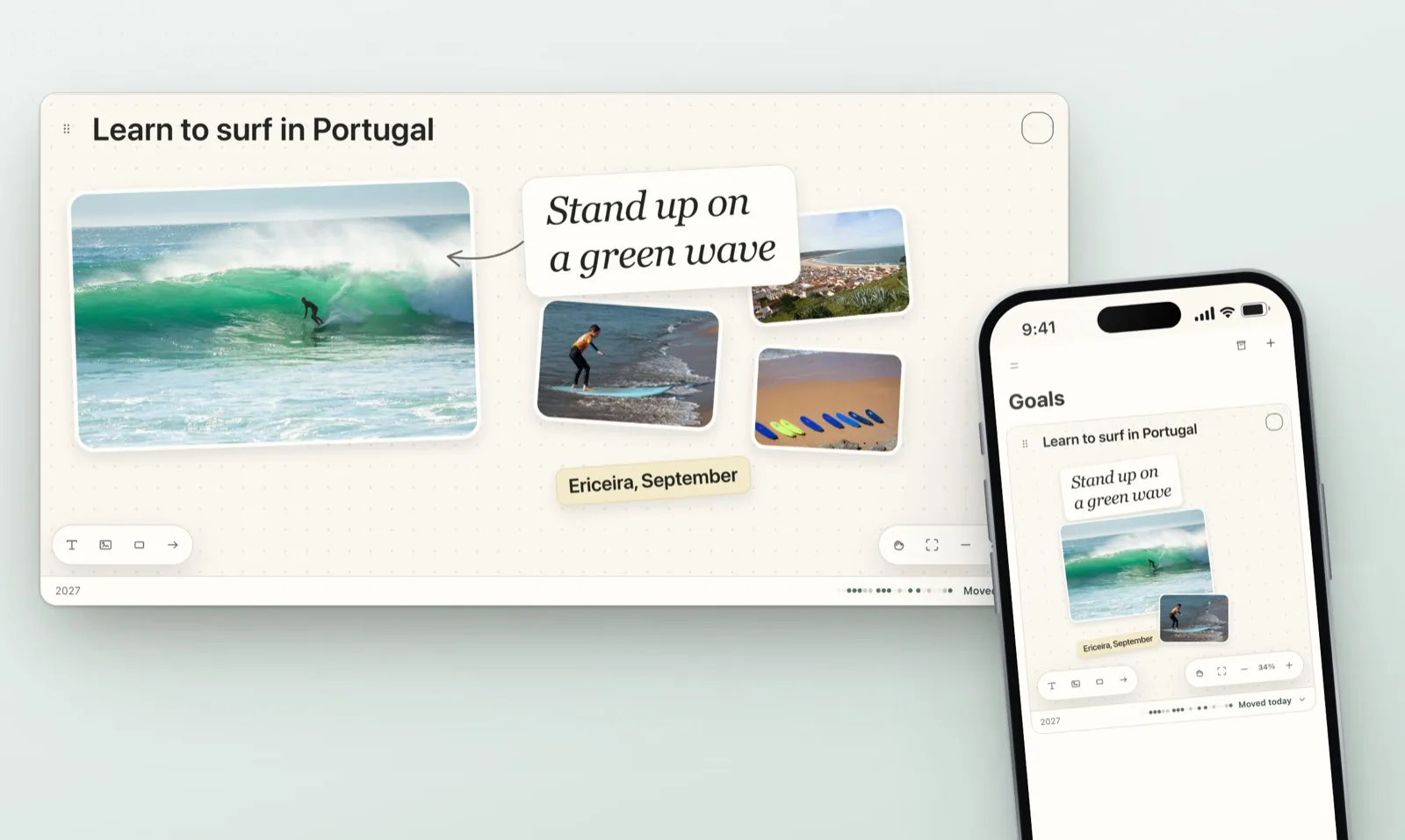
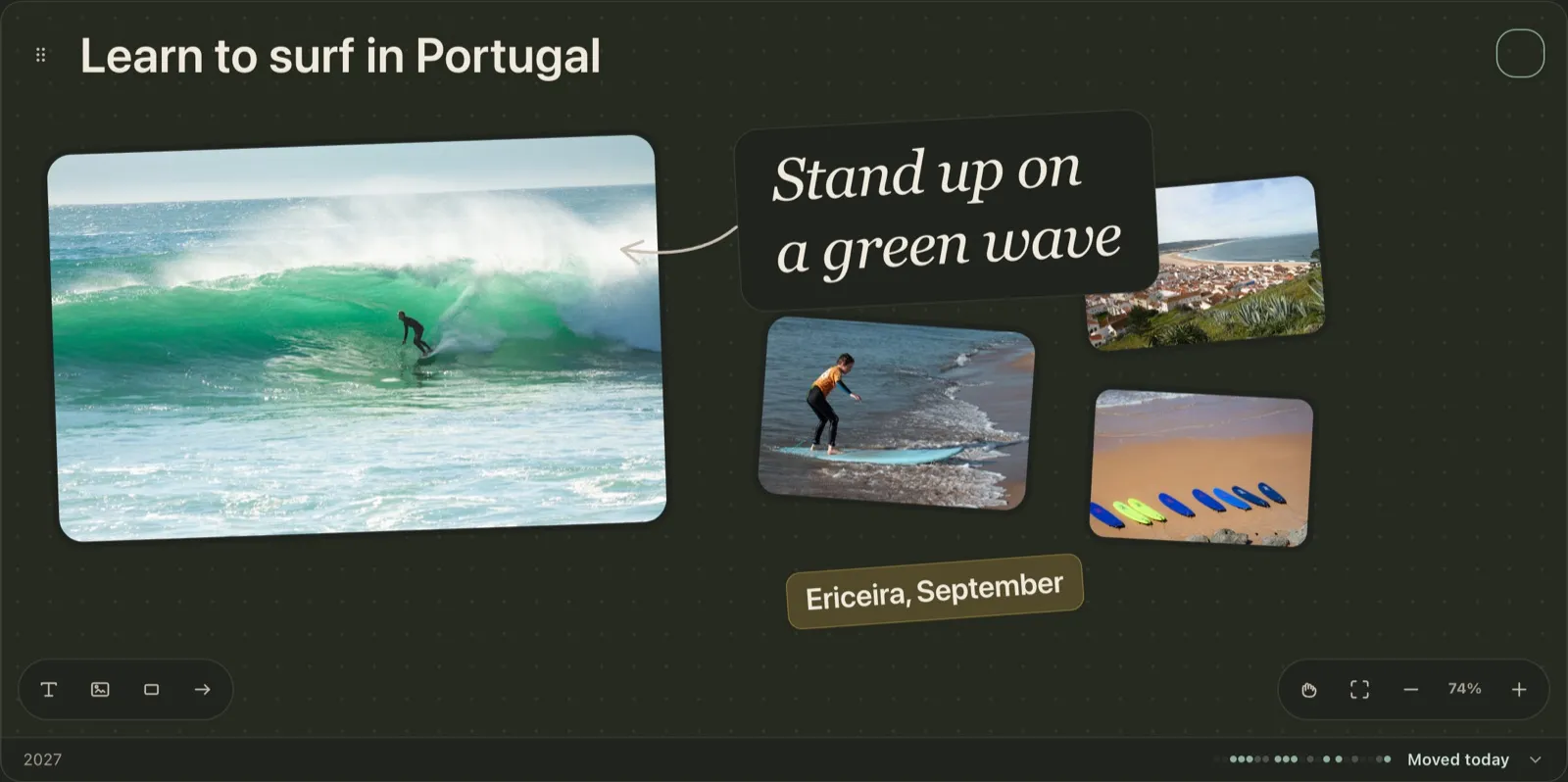
The example goal is Learn to surf in Portugal. The whole thing takes about ten minutes.
Step 1: Create the goal
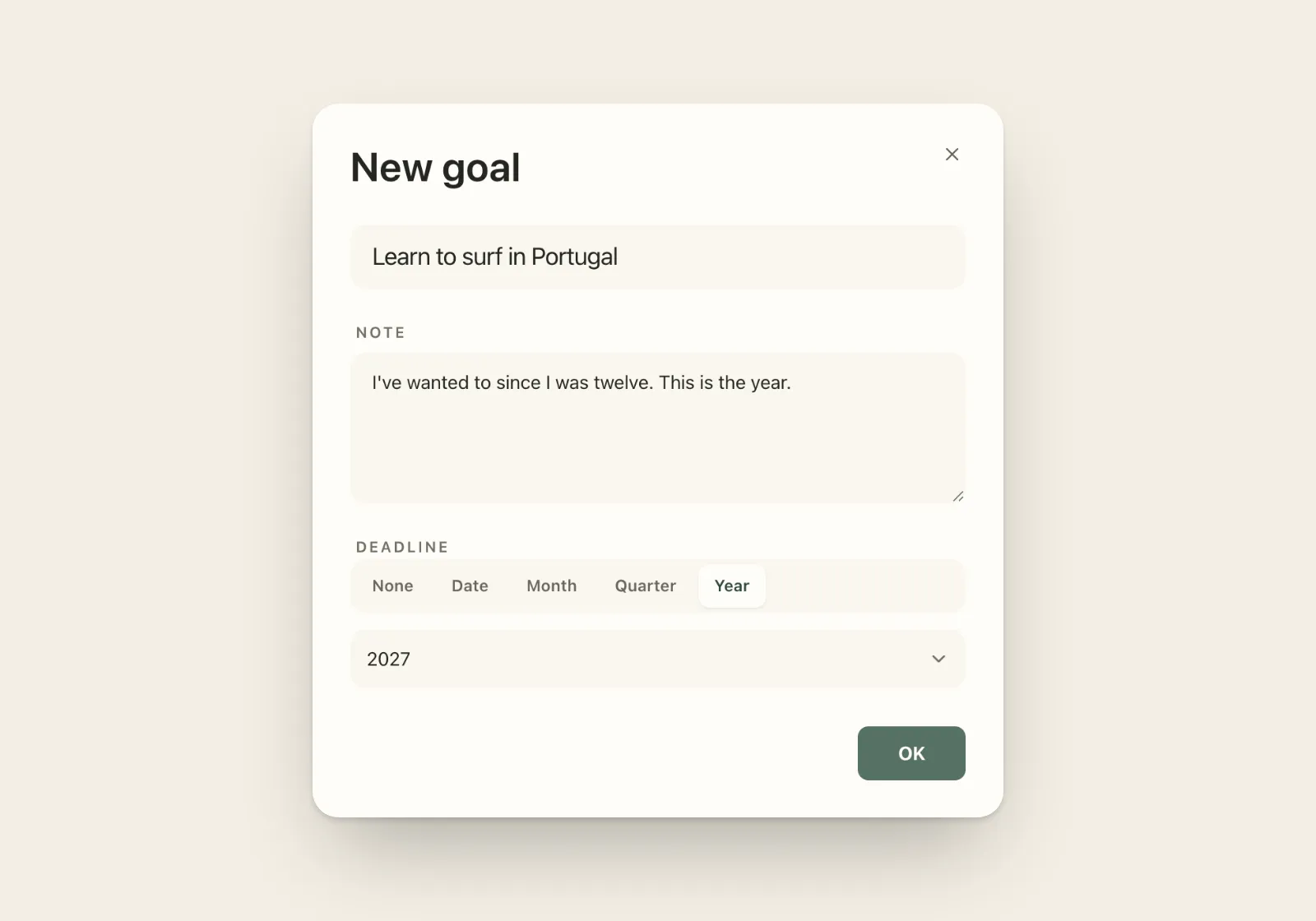
Open Goals and tap + (New goal). Type the goal, then write a line in the note about why it matters to you; that line is for the week you forget why you started. Set a Deadline: a date, a month, a quarter or a year.
Step 2: Add your photos
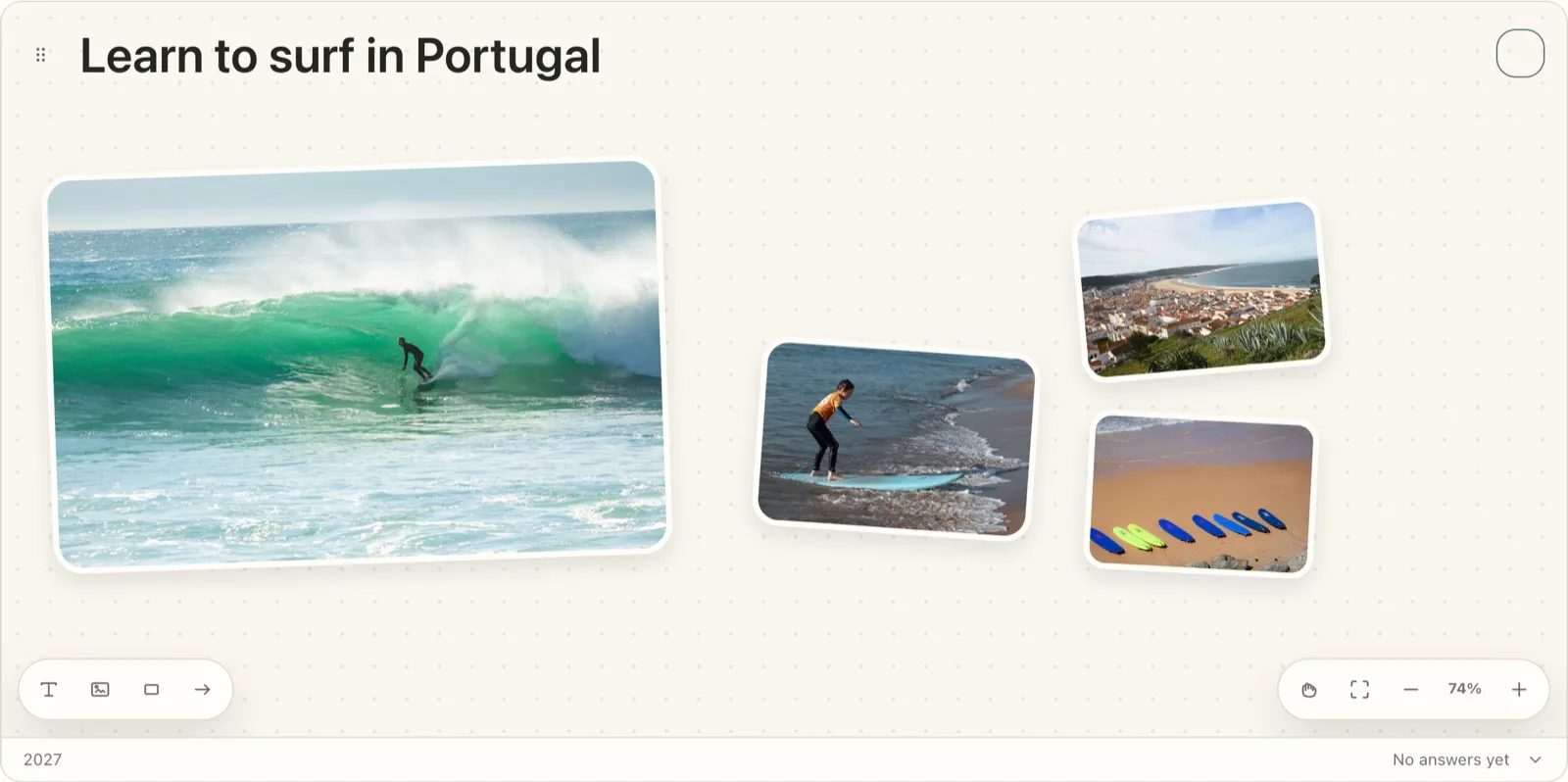
On the board, tap Add image and pick photos from your device (JPEG, PNG, GIF, BMP or WebP, up to 8 MB each). Drag them into place, pull a corner to resize, and use the rotate handle for a slight tilt. Make one photo clearly bigger than the rest: the board needs a main image.
Step 3: Add words, in different styles
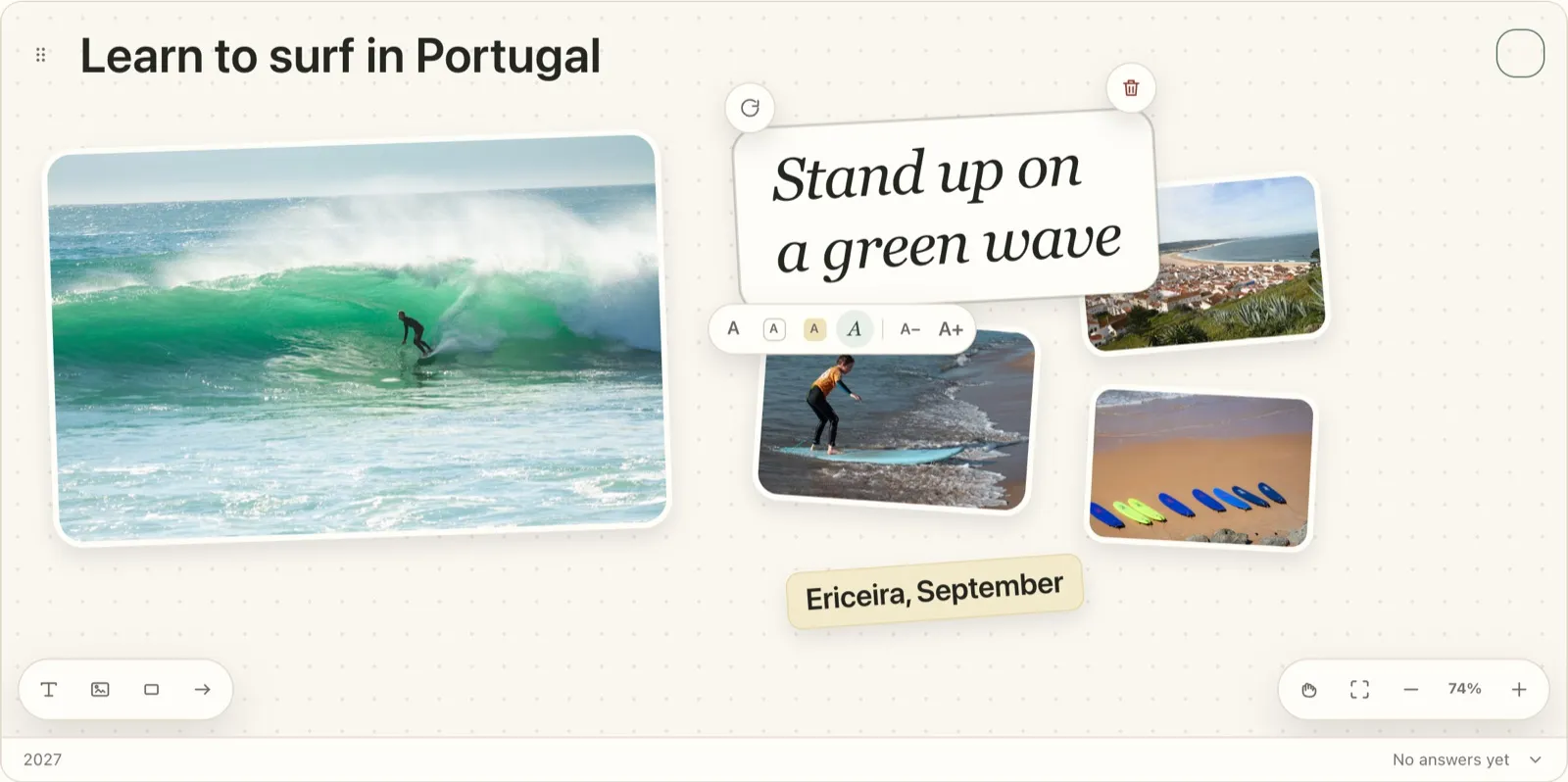
Tap Add text and type. Select the text to change its style: Plain text, Card, Sticky note or Handwritten, and make it smaller or larger. Mixing styles is what makes a board look like a board rather than a form. Here the main line is handwritten and the place and month sit on a sticky note. Keep it short: the photos do most of the talking.
Step 4: Finish it
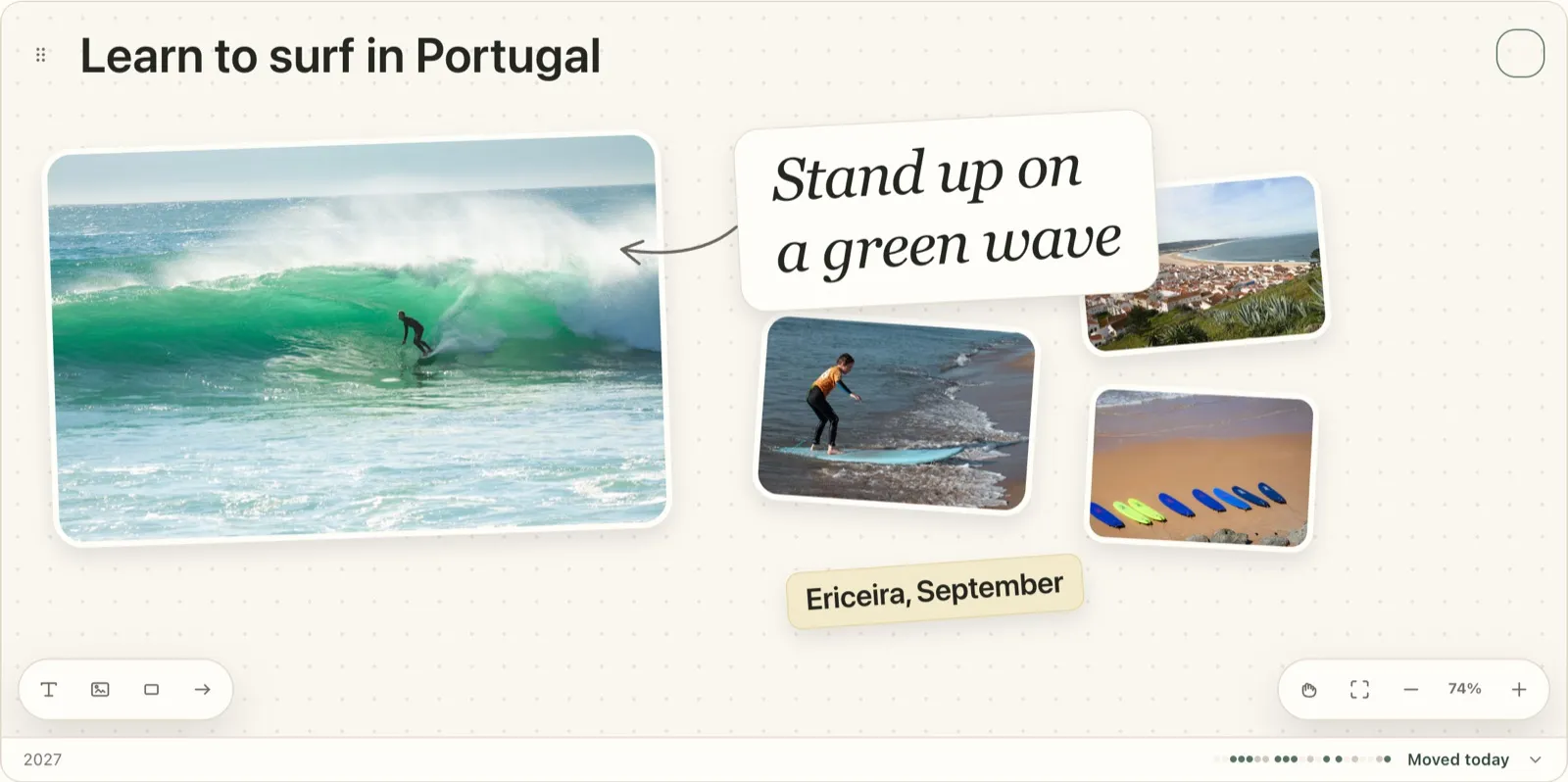
Add an arrow to connect two things, or a shape to circle what matters most. On the example, an arrow points from the line to the main photo. Then step back: if the board makes you want to go surfing, it’s done.
Step 5: Connect it to your days
This is the step paper can’t do, and where the practical side of the goal lives. Link a task or a habit to the goal through its Goal field (“Book a surf lesson”, “Swim twice a week”, “Rent a thicker wetsuit for the cold days”), and ticking it off marks the goal as moved for that day. Every evening, Log the day asks whether today moved it, and the board shows up small at the bottom of your Today page, so you see it without opening anything.
The Free plan includes one goal with a full board. The full reference is in Goal boards.
How to make a digital vision board on iPhone
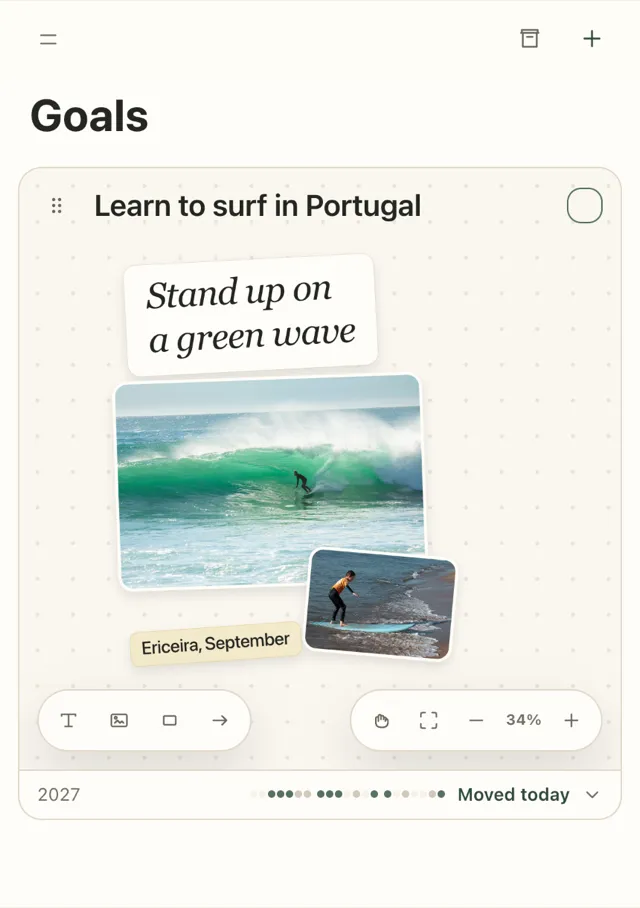
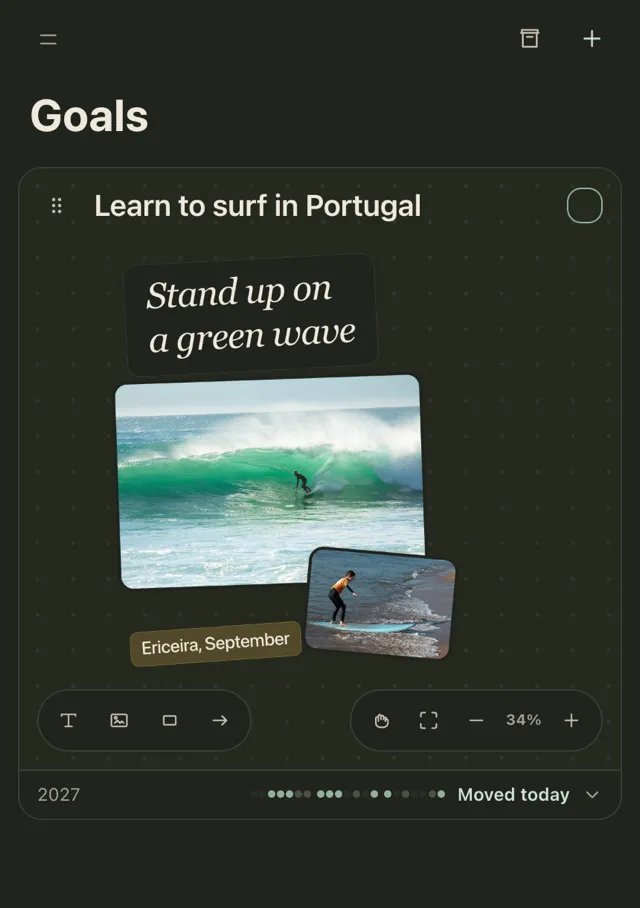
In Plannedo, the iPhone app works exactly like the steps above: Add image opens your photo library, and you move things with a press and a drag. The board fits the narrower screen on its own.
Two free alternatives on the iPhone:
- Apple Freeform comes with the iPhone, iPad and Mac. Insert photos and sticky notes on an open canvas, and it syncs through iCloud.
- Canva has an iPhone app with vision board templates (see the Canva section below).
To use a board as your wallpaper, save it as an image, then in Settings tap Wallpaper, Add New Wallpaper and choose the image from Photos. If all you need is the wallpaper, the free vision board maker builds one in the browser at the right size for an iPhone lock screen, with the top kept clear for the clock.
How to make a digital vision board on Mac
The Plannedo Mac app (or plannedo.com in any browser) gives you the same canvas with a bigger view, and the board is the same one you see on your phone. Apple Freeform is free on the Mac too, and Canva runs in a browser or its desktop app. To keep the board on your desktop, export it as an image and set it as your desktop picture in System Settings → Wallpaper.
How to make a digital vision board in Canva (free)
- Sign in at canva.com or in the app and search the templates for “vision board”.
- Pick a template. Elements marked with a crown need Canva Pro, so look for one without them if you want to stay free.
- Replace the photos with your own (Uploads) or ones from Canva’s free library, and edit the text.
- Use Share → Download and save it as a PNG.
- Set it as your phone or desktop wallpaper.
Canva makes the best-looking boards for the least effort. What you get at the end is a picture: nothing in it connects to your tasks or reminds you that the goal exists.
How to make a vision board on Pinterest
Create a new board from your profile, turn on the option to keep it secret if you want it private, and save pins to it. Pinterest is excellent for collecting images and ideas, but a Pinterest board is a feed of other people’s pins: you can’t arrange them, add your own words or write down a plan. It works best as step zero, where you gather images before you build the real board somewhere else.
How to make a digital vision board in Google Slides
- Create a blank presentation and delete the placeholder boxes.
- Optional: under File → Page setup, choose a custom size if you want a phone wallpaper shape.
- Use Insert → Image for photos and Insert → Text box for words.
- Download the slide with File → Download → PNG image.
It’s free and works on any computer, though arranging photos in Slides is fiddlier than in a canvas app.
Which way should you make it?
| Tool | Free | Works on | Best for | Linked to your daily plan |
|---|---|---|---|---|
| Plannedo | Yes, one goal with a full board | Web, iPhone, Mac | A board that stays connected to tasks and habits | Yes |
| Apple Freeform | Yes | iPhone, iPad, Mac | A flexible canvas on Apple devices | No |
| Canva | Yes, Pro elements cost extra | Web, iPhone, Android, desktop | A polished wallpaper or printable | No |
| Yes, with ads | Web, iPhone, Android | Collecting images and ideas | No | |
| Google Slides | Yes | Any browser | A quick board on any computer | No |
If you’re choosing a dedicated app, I compared ten of them, with prices, in Best Vision Board Apps.
Make it a board you’ll actually use
A board full of finished outcomes is pleasant to look at and, according to research on positive fantasies, can even sap the energy the goal needs. Two things fix that without turning the board into a to-do list. Put a photo of the work next to the result, like the beginner standing up in shallow water on the example. And give the goal a first step on a real day: the obstacle you already know about and your plan for it belong in tasks and habits, not on the board. The studies behind that are in Do Vision Boards Work?, and if you need ideas for what to put on yours, there are more than sixty in 2027 Vision Board Ideas.
FAQ
How do I make a digital vision board for free?
Pick one goal, collect three to five images, and arrange them with a few words on a free canvas: Plannedo, Apple Freeform, Canva or Google Slides all work. Keep the words short and motivating, link the first tasks to the goal, and keep the board where you’ll see it every day.
What is the best free vision board app?
It depends on what you want from it. Plannedo’s free plan includes one goal with a full board linked to your tasks and habits; Apple Freeform is free on Apple devices; Canva is free for designing a wallpaper. More options are in Best Vision Board Apps.
How do I make a vision board on my iPhone?
Use an app with a canvas, such as Plannedo, Apple Freeform or Canva. Add photos from your library, add a few words, and arrange them. To use it as a wallpaper, save it as an image and set it in Settings → Wallpaper.
How do I make my vision board my phone wallpaper?
Design the board at your phone’s screen size in Canva or Google Slides, or save your board as an image. Then open Settings, tap Wallpaper, choose Add New Wallpaper and pick the image from Photos.
Can I make a vision board on a Mac?
Yes. Plannedo has a Mac app and runs in any browser, Apple Freeform is free on the Mac, and Canva works in a browser or its desktop app.
Is a digital vision board as good as a paper one?
It can be better. A paper board works if it hangs where you look every day. A digital board in the app you plan your day in can also be linked to your tasks and habits, so you see whether your days are moving the goal.
Photo credits
The photos on the example board are from Unsplash: Evert van Duijn, Sue Winston, SnapSaga and Victoria Nezh.