Goals
Goal boards
Create a goal and turn it into a board you can look at — photos, words, shapes and arrows, a deadline and a line about why it matters.
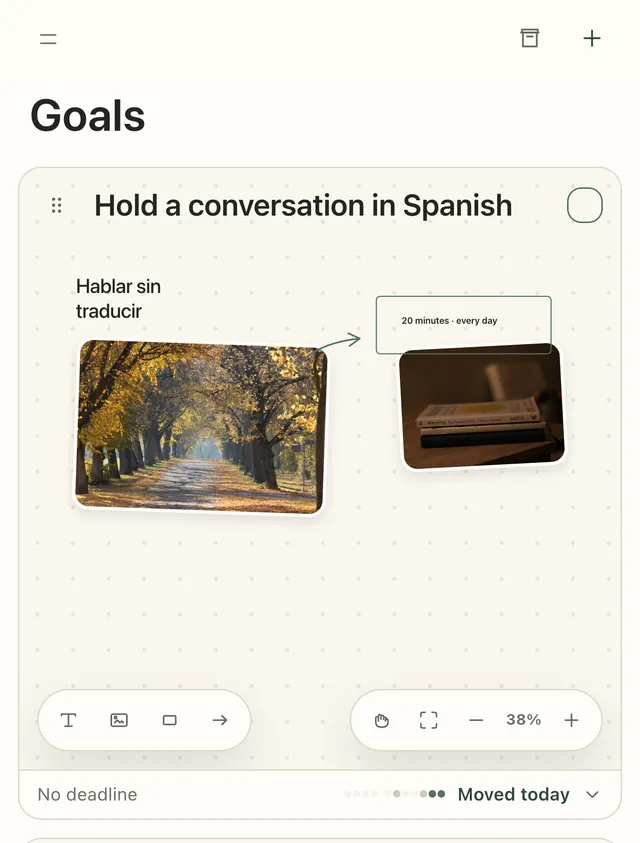
In most planners a goal is a line of text. In Plannedo every goal is a board: a canvas you fill with photos, words, shapes and arrows until it looks like the thing you’re after. You see it on the Goals screen, and a small version of it on Today, every day.
Create a goal
Section titled “Create a goal”- Open Goals and click + (New goal).
- Type the goal in Goal title.
- In the Why it matters field, write a line for the week you forget why you started.
- Choose a Deadline: None, Date, Month, Quarter or Year. Most goals don’t have a day attached, so “October” or “Q4 2026” is fine.
- Click OK.
The new goal appears at the top of the list. To change it later, click its title.
The deadline is shown under the board — Oct 7, 2026, Oct 2026, Q4 2026 or 2026 — as a reference point. Plannedo doesn’t send reminders about it.
The Free plan includes one goal with a full board; Pro has no limit.
Fill the board
Section titled “Fill the board”The toolbar at the bottom left of the board adds things:
| Button | Adds |
|---|---|
| Add text | A block of text you can type into right away |
| Add image | A photo from your device: JPEG, PNG, GIF, BMP or WebP, up to 8 MB |
| Add shape | A Rectangle, Circle or Diamond outline — handy for circling what matters |
| Add arrow | A hand-drawn arrow to point at something |
New things appear in the middle of what you’re looking at, on top of everything else.
Work with what’s on the board
Section titled “Work with what’s on the board”- Select: click or tap an item. Click empty space to deselect.
- Move: drag it. On a touch screen, press and hold for a moment, then drag.
- Resize: on a computer, drag an edge or a corner; on a phone, drag the round handle at the bottom-right corner. Text resizes itself to fit what you write.
- Rotate: drag the Rotate handle above the item.
- Bring to front: clicking or dragging an item puts it on top.
- Delete: the trash button above the item. It can’t be undone.
Text styles
Section titled “Text styles”Select a text block to get its tools: Plain text, Card, Sticky note or Handwritten, and Smaller text / Larger text. Click a text block to edit it; press Esc or click elsewhere when you’re done.
Move around the board
Section titled “Move around the board”The toolbar at the bottom right controls the view:
- Pan mode (the hand) lets you drag the canvas itself. While it’s on, items stay put.
- Fit canvas zooms to show everything on the board.
- Zoom out, Zoom in and the percentage show and change the zoom. On a computer you can also hold ⌘ or Ctrl and scroll.
A board opens fitted to its contents each time; zoom and position aren’t saved.
Reorder goals
Section titled “Reorder goals”Drag a goal by the grip handle at its top-left corner. Completed goals always stay at the bottom.
What’s next
Section titled “What’s next”- Connect tasks and habits to the goal, so the day’s work counts toward it.
- Answer it in the evening check-in.
- Complete, archive or delete a goal.