Plan your days
Week and Month
See the same tasks zoomed out to a week or a month, add tasks to any day, drag them around, and choose what each view shows.
Week and Month show the same tasks as Today, zoomed out. Nothing is copied between them: a task moved on the Week is moved everywhere.
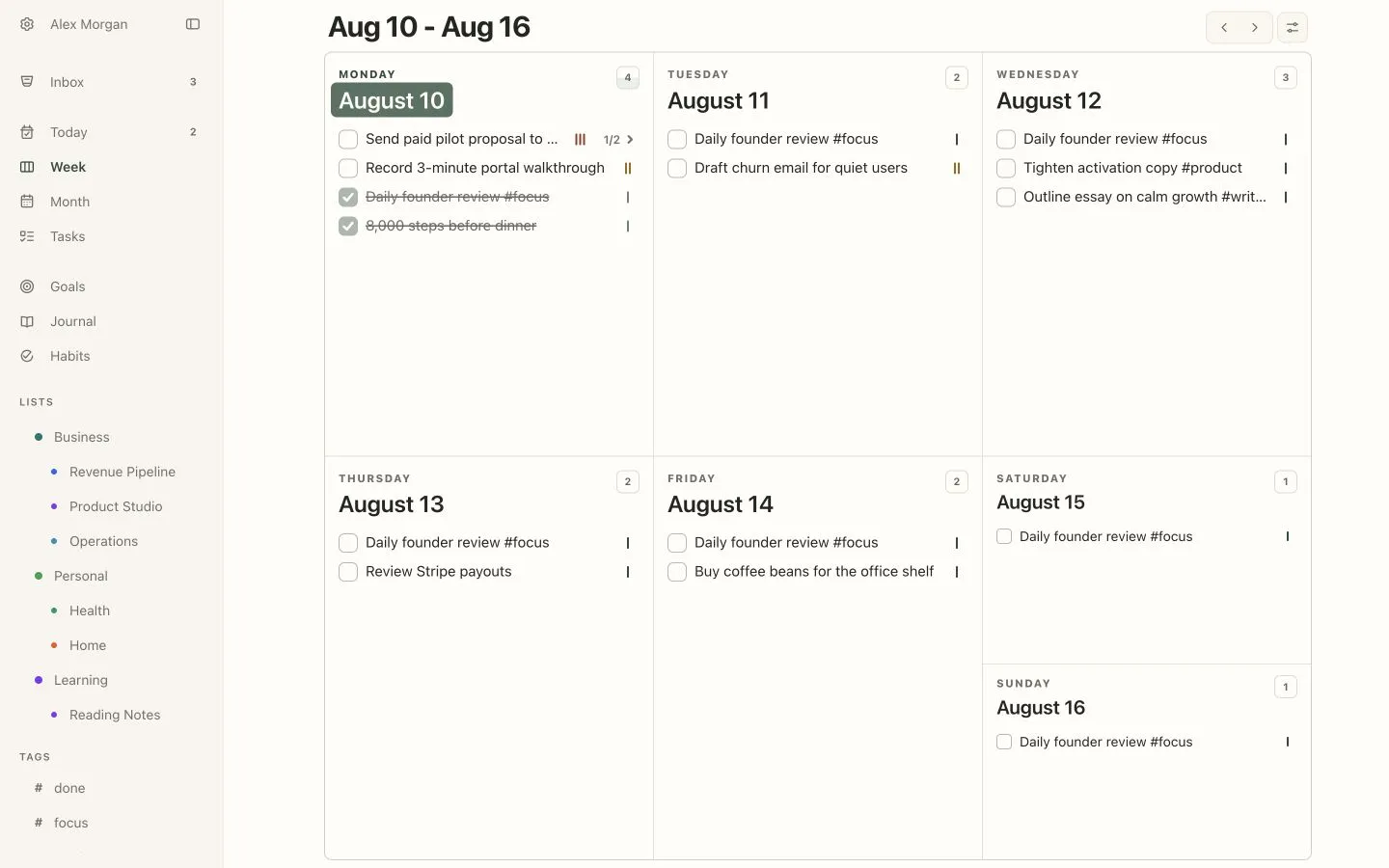
The week is laid out as five day cards plus one card for the weekend, which holds the last two days of the week. On a phone the days run in a single column.
Each day shows its date and a small square with the number of items; it fills in as you tick them off. Today’s date is highlighted.
Use the arrows next to the title to go to the previous or next week. Week in the sidebar always brings you back to the current one.
Add and move tasks
Section titled “Add and move tasks”- Add: hover over a day and click Add task, or click empty space in it. Type a title and press Enter (Esc cancels). Open the task afterwards to add details.
- Move: drag a task to another day to change its date, or up and down to reorder it. On a touch screen, press and hold for half a second before dragging.
- Nest: expand a task and drop another task into it to make it a subtask, or drag a subtask out onto a day.
To change the day of a repeating task, open it and change its date rather than dragging it — see Repeating tasks.
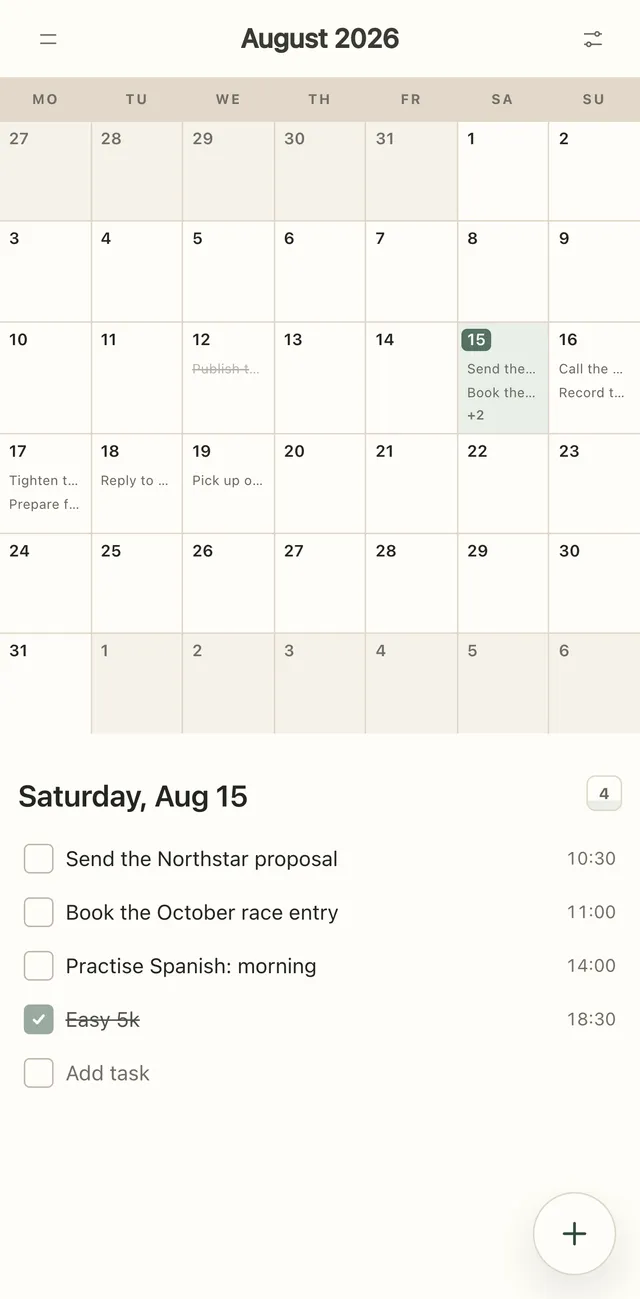
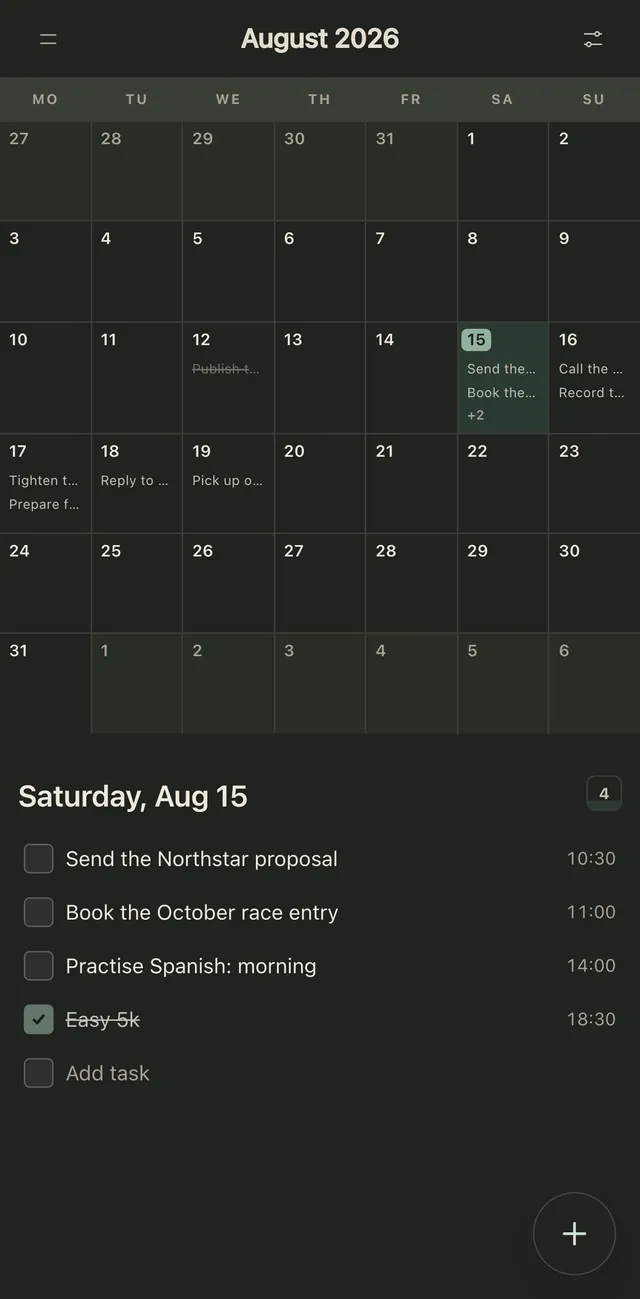
On a computer the month is a grid of seven columns, with each day’s tasks inside its cell; days from the neighbouring months are dimmed. Add a task by hovering over a day and clicking Add task, and drag tasks between days to reschedule them.
On a phone each day shows its first couple of titles and a +N for the rest. Tap a day to open its full list below the calendar, with an Add task field at the bottom. To move a task to another day on a phone, open it and change its date.
Choose what to show
Section titled “Choose what to show”The sliders button (Week settings or Month settings) has three switches:
| Switch | Shows |
|---|---|
| Tasks | Tasks that don’t repeat |
| Recurring tasks | Repeating tasks, on every day they’re due |
| Habits | Your habits, with a round checkbox on each scheduled day |
By default tasks and recurring tasks are on and habits are off. Week and Month remember their switches separately, on all your devices. With Habits on, you can tick a habit for any day right in the grid.
Week start
Section titled “Week start”Settings → Region & format → Week starts on sets the first day to Monday or Sunday. It decides which seven days a week shows, which two days share the weekend card, and the column order on Month.