Plan your days
The Today page
What's on Today, from overdue tasks to the evening check-in, how to move between days, and how to switch sections off.
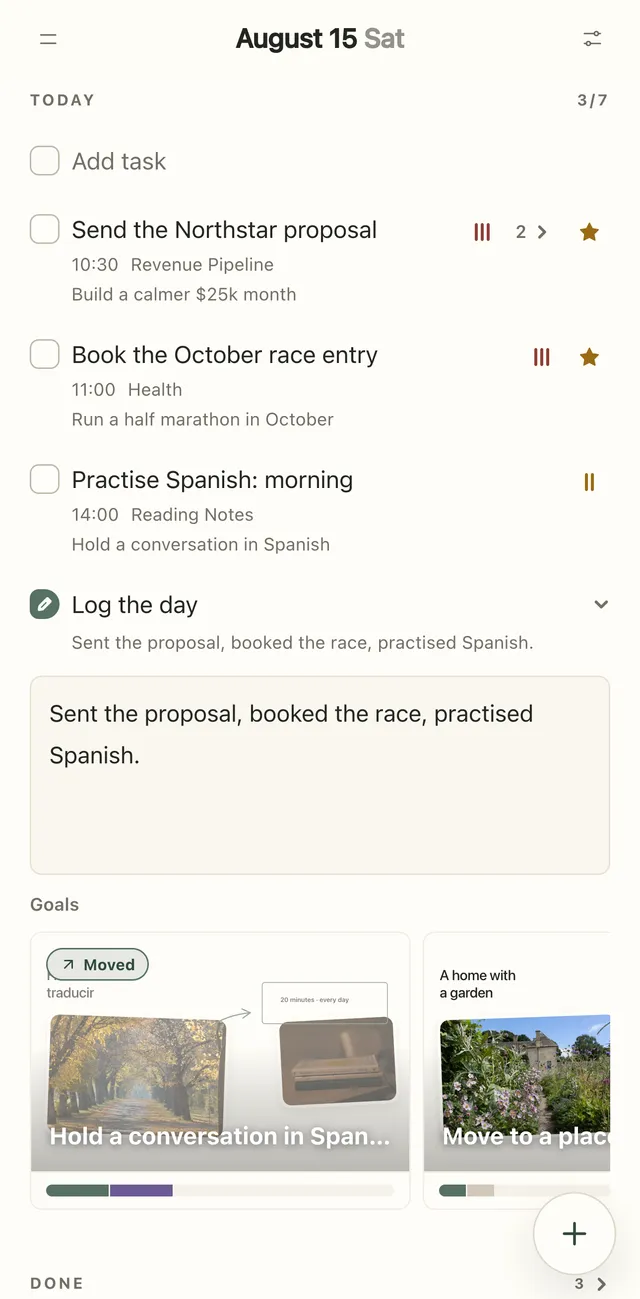
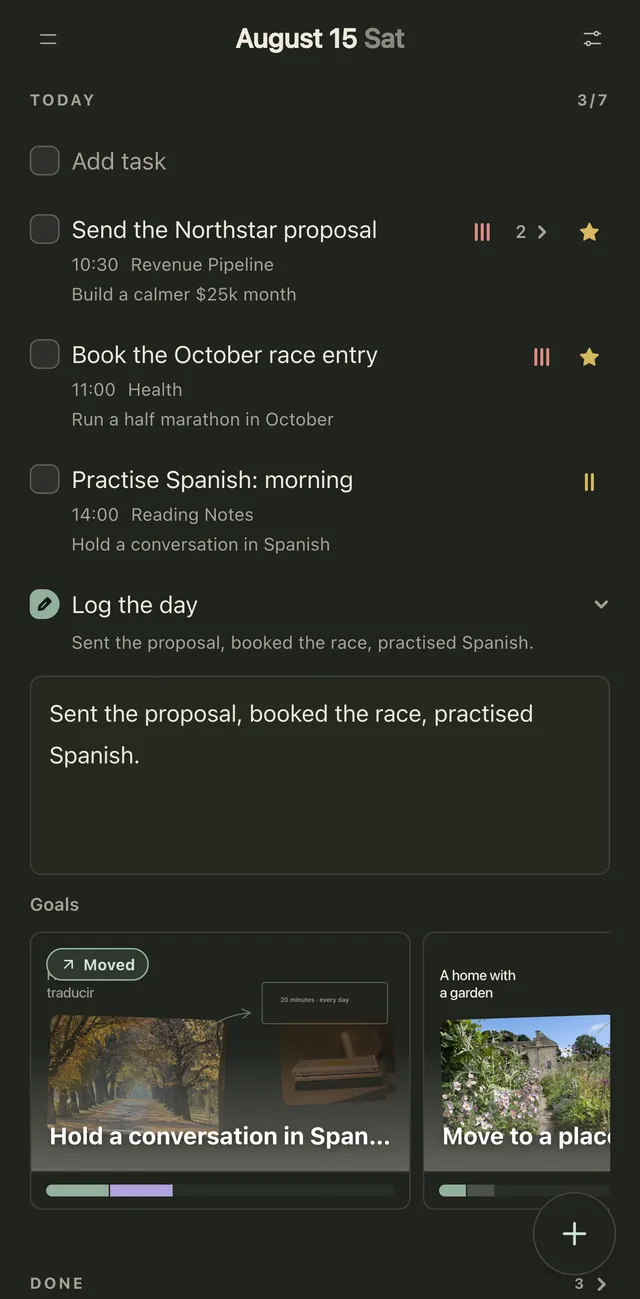
Today is the page Plannedo opens on: the whole day on one sheet, in the order you live it. Tasks first, then habits, then a line about how it went and one answer per goal.
What’s on the sheet
Section titled “What’s on the sheet”From top to bottom:
- Overdue — tasks from earlier days that aren’t done yet, each with its original date in red. Tap the header to fold or unfold it.
- The day — its name (Today, Tomorrow or a date) and a counter of how much is done, like 3/7.
- Add task — tap it to start typing. See Add and edit tasks.
- Tasks for the day, in your order. Drag to reorder.
- Habits scheduled for the day. Tap one to tick it; its streak is shown underneath. See Habits.
- Log the day — a line about how the day went and an answer for each goal. See The evening check-in.
- Done — everything you’ve finished, so the open part of the list stays short.
When everything on the day is done, Plannedo says so at the top: Today is clear.
The counter includes the day’s tasks, its habits and Log the day. Overdue tasks and subtasks aren’t counted.
Tick things off
Section titled “Tick things off”Tap a task’s checkbox. It’s crossed out, then moves into Done a moment later. Tap it again to bring it back.
If the task belongs to a goal, the goal is marked as moved for that day — see Connect tasks and habits to a goal.
Overdue tasks
Section titled “Overdue tasks”A task is overdue when its date is earlier than the day you’re looking at and it isn’t done. Repeating tasks are never overdue — each day stands on its own.
To bring an overdue task to today, open it, set its date to Today and close it. To move many at once, use Select → Today on the Tasks screen.
Ticking an overdue task off records it as done on its original date, so it leaves the Overdue list without appearing in today’s Done.
Other days
Section titled “Other days”On a computer, use the arrows at the top right, or click the date between them (Pick a date) for Yesterday, Today, Tomorrow, Next Monday or a calendar. On a phone, tap the date at the top.
Everything works on other days too: tasks you add get that day’s date, and you can tick habits or fill in Log the day for a past day.
“Today” follows the timezone in Settings → Region & format. If you leave Plannedo open overnight, Today moves to the new day the next time you come back to it.
Switch sections off
Section titled “Switch sections off”The sliders button at the top right (Today sheet settings) has a switch for each part of the day:
- Show in day: Overdue, Tasks, Habits, Journal, Goals
- Completed: Group Done — when it’s off, finished items stay where they are, crossed out, instead of moving into Done.
Everything is on by default. Plenty of people turn Goals off at first and use Plannedo as a plain daily planner. With both Journal and Goals off, Log the day disappears.
Your choices, and which parts are folded, are saved to your account and apply on all your devices.